Three still styles from one peak array
All three styles use the same peaks: Bars draws separate vertical strokes, Line connects them, and Mirrored fills an envelope around the center. Choose the style that reads most clearly at your intended size.
Free online · No sign-up · PNG & SVG
Use this free online audio waveform generator to turn one audio file into a static PNG or SVG. No sign-up, payment, or watermark is required. Choose Bars, Line, or Mirrored, set colors or transparency, pick a size, and download without uploading the audio.
Waveform image workspace
Bars, Line, or Mirrored · PNG and SVG
Files stay local
Decode one local file and export a static PNG or SVG. MP3, WAV, FLAC, M4A, AAC, or OGG up to 80 MB.
Three local steps
Load audio into the audio waveform generator, choose the appearance, and download PNG or SVG.
Choose an MP3, WAV, FLAC, M4A, AAC, or OGG file up to 80 MB. The audio waveform generator decodes it in this tab and shows the filename, duration, channel count, and decoded sample rate. Empty, oversized, non-finite, or undecodable input fails before an image is drawn.
Pick Bars, Line, or Mirrored. Sizes are 1600×400, 1080×1080, and 1920×1080. Set a foreground color, a background color, or a transparent background. The audio waveform generator preview updates immediately from the same peak geometry that PNG and SVG will use.
The audio waveform generator creates PNG for a raster image or SVG for the same shapes as markup. Neither file includes a watermark, login prompt, script, or remote asset. Changing style, size, color, transparency, or the file clears older download links so you cannot save a stale picture.
What the tool shows and controls
The audio waveform generator lets you choose a style, size, and background for a static image.
All three styles use the same peaks: Bars draws separate vertical strokes, Line connects them, and Mirrored fills an envelope around the center. Choose the style that reads most clearly at your intended size.
The selected width determines the number of time columns. The audio waveform generator uses the same shapes for the preview, PNG, and SVG, keeping the image consistent across formats.
A transparent background makes the audio waveform generator omit the SVG fill rectangle and leave PNG alpha empty. The preview checkerboard is only an editor cue and is not written into the download. When transparency is off, the chosen background color fills the entire frame.
The audio waveform generator divides peaks by this file’s largest absolute sample so a quiet recording still occupies the frame. The picture therefore shows shape, not calibrated dBFS, LUFS, or spectral energy. It is the wrong tool for mastering decisions or loudness compliance.
Filename, duration, channels, decoded sample rate, and image dimensions stay visible while you edit. Audio facts come from the browser-decoded file; dimensions follow your selected output size.
For every time column, the audio waveform generator keeps the largest absolute sample found in any decoded channel. A strong event on the left or right can therefore set that column’s height. It does not downmix the audio, create separate left and right lanes, or imply that both channels carried the same signal. Check the displayed channel count when that distinction matters, and use an audio editor when you need per-channel inspection.
The audio waveform generator scans the decoded file once into a shared set of time columns, and every column keeps its tallest sample instead of an average. A brief click, drum hit, or consonant can remain visible even when most samples in that slice are smaller. The graphic still cannot show the exact sample or its frequency content; zoomed editing and spectrum work belong in a dedicated audio editor.
The audio waveform generator makes downloads available in the same view as the preview. There is no MP4, GIF, WebM, animated loop, beat-sync renderer, background photograph, caption layout, QR code, Spotify import, microphone recorder, or saved design document in this release.
Practical workflows
Choose audio waveform generator dimensions and an image format that suit your destination.
Choose 1920×1080 or 1600×400 in the audio waveform generator when the image must sit on a light slide. Use transparency for a poster or thumbnail overlay. Export SVG if the host app scales vector art cleanly; export PNG when the destination only accepts raster files.
If you already reversed a passage or shaped tone elsewhere, use the audio waveform generator to explain the before-and-after envelope. Open Audio Reverser or Online Equalizer when the next task is the audio change itself; keep this page for the picture.
The audio waveform generator offers 1080×1080 as its square preset, and Mirrored style usually reads well at that size. The graphic is normalized to this file, so songs with different dynamics can look equally tall even when one is quieter in the real world.
Use the audio waveform generator to download a PNG beside the original audio as a quick visual index. The image does not embed the audio, lyrics, or personal metadata beyond the download filename you already chose on disk.
Practical checklist
Judge the audio waveform generator preview at its intended size and background.
Choose dimensions before color. Size changes reuse decoded peaks and invalidate old downloads without rescanning audio.
Check contrast on the destination background. Use a solid background for documents and transparency for a known surface.
Quiet and loud files can look similar because amplitude is scaled. Use Audio Normalizer for measured Peak or RMS.
Edit SVG shapes in a vector editor for recoloring. PNG is a finished raster at the selected pixel dimensions.
The filename includes a waveform suffix. Image bytes contain no title, email, or site watermark.
Input, output, and privacy
The audio waveform generator draws a static image from decoded samples in this tab. It does not render video, stream Spotify, or save a design project.
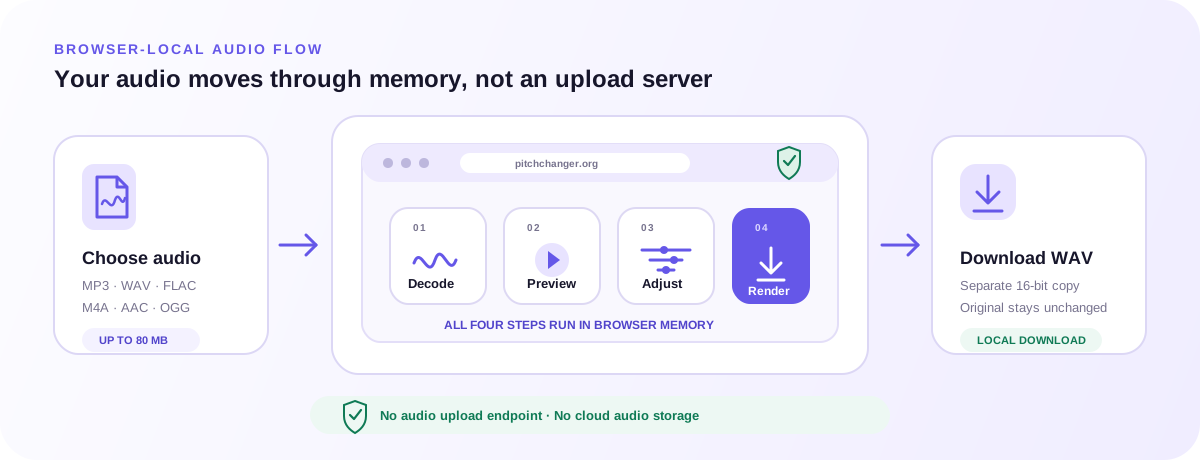
Input follows the shared 80 MB browser-audio list. Output is PNG or SVG at one of the three pixel sizes. The audio waveform generator does not emit MP4, GIF, WebM, PDF, or an audio file.
Geometry is normalized to the current file’s peak sample. The page will not label the image as LUFS, true peak, spectrum, or a commercial template pack. If you need numbers, measure audio on the Audio Normalizer instead.
Decode, preview, and download stay in the tab. There is no login gate on download, no remote font or script inside the SVG, and no analytics payload with the waveform, filename, or colors.
Related browser tools
Pitch, timing, direction, tone, automatic analysis, and tap-based tempo are different audio tasks. Open the tool whose controls match the result you need. Any file you choose stays inside that tool’s browser-local workflow.
Reverse a whole file or a marked range when you need the audio itself to run backwards before you draw a picture of it.
Open Audio Reverser →Shape ten frequency bands locally when the remaining job is tone, not a still waveform image.
Open Online Equalizer →Change musical pitch and tempo independently, then return here if you still need a static waveform graphic.
Open Pitch Changer →FAQ
Answers about styles, image formats, transparency, and amplitude.
An audio waveform generator draws amplitude over time as a still image. Download your recording’s waveform as PNG or SVG.
Yes. Choose a file, set style and size, and download without registration or a watermark.
They share geometry, colors, dimensions, and transparency. PNG is raster; SVG is vector. Pixel-level anti-aliasing may differ.
No. Amplitude is scaled relative to this file’s largest sample. It is not a loudness meter or spectrum analyzer.
No. Only static PNG and SVG are available, without animation or beat syncing.
1600×400, 1080×1080, and 1920×1080. Custom resolutions, print bleed, and retina multipliers are unavailable.
The old PNG or SVG link is removed immediately. Create the file again from the current preview.
No. It contains shapes, a viewBox, and an optional background, without scripts, external resources, or embedded audio.
MP3, WAV, FLAC, M4A, AAC, and OGG up to 80 MB, subject to browser decoding. Drawing uses the resulting decoded buffer.
Yes. Processing is local, sign-up is not required, and analytics do not receive the audio, image, filename, or chosen colors.
Check the audio waveform generator preview at the intended size, then save PNG or SVG.
Open the audio waveform generator