Free online · No sign-up · Whole track or A–B

Audio Reverser

Use this free online audio reverser to reverse a full audio file or one selected A–B section. There is no sign-up, payment, or credit step. Compare Original and Reversed at the same position, then export the full WAV without uploading your file.

  • Free to use
  • No sign-up
  • Files stay local

Reverse audio workspace

Whole track or selected range · WAV export

Files stay local

Drop audio into the reverser

Hear the full recording backwards or reverse one selected range. MP3, WAV, FLAC, M4A, AAC, or OGG up to 80 MB.

Three local steps

Choose the file and reversal range, then compare before export.

  1. 1

    Load a file into the audio reverser

    Choose one MP3, WAV, FLAC, M4A, AAC, or OGG file up to 80 MB. The audio reverser decodes it in browser memory and keeps an immutable copy of the original PCM. Unsupported, empty, oversized, or undecodable input fails visibly before any reverse operation begins.

  2. 2

    Reverse the whole track or mark A–B

    Whole-track reversal is ready by default. To reverse only one passage, seek to the start, set A, move at least 0.25 seconds forward, set B, and choose Selected A–B. The audio reverser flips samples inside that boundary while the samples before A and after B remain in their original order.

  3. 3

    Compare the result and create WAV

    Switch between Original and Reversed without losing the playhead, selection, or source PCM. Use the loop to inspect a transition, then export a complete 16-bit WAV. Even in selected-range mode, the audio reverser downloads the full timeline with only the marked passage running backwards.

What the tool shows and controls

Choose what runs backwards; preview comparison leaves that export choice intact.

Whole-track reversal by default

After decoding, the audio reverser prepares a backward preview of each channel: the last sample becomes the first. Sample rate, duration, and channel alignment stay unchanged. Preview is ready without an extra processing screen; download starts only when you choose it.
Sample-accurate A–B range reversal

A and B are converted from seconds to matching sample indexes for every channel. The audio reverser reverses only that half-open frame range and copies all samples outside it unchanged. This is useful for a word, drum fill, transition, or sound-design fragment when reversing the complete recording would remove the surrounding context you still need.

Original and Reversed listening comparison

The comparison buttons act as a preview bypass. Switching to Original uses the immutable decoded buffer; switching back uses the current derived reversal. The audio reverser preserves the current time and active A–B state during that change. Export always creates the reversed result described by the scope control, so a temporary listening bypass does not silently replace the requested output.

Fresh derived buffers prevent cumulative damage

Each change starts from the original decoded audio, so repeated adjustments do not reverse an already reversed copy. Switching from A–B to Whole track produces one full reversal. Original always lets you hear the unchanged source.

Practical workflows

Try whole-track or selected reversal for these sound-design tasks.

1

Hear hidden shapes in speech and vocals

Reverse a spoken phrase, sung line, or breath to hear its envelope from a different direction. A whole-track audio reverser is useful for a broad creative scan; selected A–B reversal is more practical when one word or syllable matters. Keep the original comparison available because reversed consonants and room tails can sound dramatically different even though total duration is unchanged.

2

Build reverse cymbal and transition ideas

Mark the attack and decay of a cymbal, impact, piano chord, or texture, then reverse only that range. The audio reverser keeps the rest of the file in place, letting the selected sound rise toward its former attack while surrounding timing remains available for reference. Export the complete WAV and trim or arrange it later in your editor if needed.

3

Study melodies, rhythms, and production details

Playing music backwards can expose repetition, tails, edits, and rhythmic density that are easy to overlook forward. Use the waveform and five-second transport controls to locate a region, then loop it while switching Original and Reversed. The audio reverser does not identify notes, transcribe lyrics, detect hidden messages, or explain what you hear; it gives you a controlled playback transformation.

4

Create a reversible sound-design copy

Sound designers can audition the complete backward file, narrow the idea to an A–B range, and download a separate WAV. The audio reverser never writes into the chosen source and does not add cloud project state. Keep the original file beside the generated copy so later editing decisions can be repeated from known input rather than from a chain of previously transformed exports.

Practical checklist

Listen across both A–B boundaries to catch abrupt joins.

  1. 1

    Place A and B away from important transients

    Move A and B away from loud transients or sustained notes. Loop both joins to check for clicks before export.

  2. 2

    Use Whole track to verify the source first

    Try Whole track first, then mark A–B if only one region needs reversal.

  3. 3

    Compare from the same playhead

    Compare Original and Reversed at the same timestamp. Start just before A to hear the transition in context.

  4. 4

    Remember that reversed audio keeps its duration

    A six-second source stays about six seconds in either mode. Reversal does not stretch or crop the timeline.

  5. 5

    Preview the downloaded WAV in its destination

    Test the WAV in your editor or sampler. Keep the original: source tags and the working session are not saved.

Input, output, and privacy

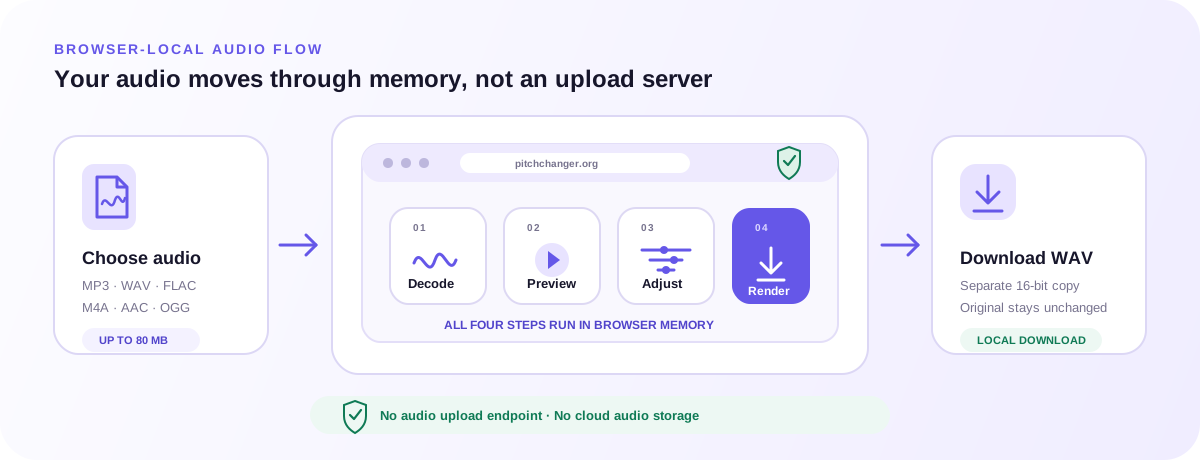
The audio reverser depends on browser decoding, always exports a full WAV, and keeps source and derived audio inside this browser session.

Browser-local audio reverser workflow from selected file through decode, whole or A–B sample reversal, comparison, and WAV download
The audio reverser keeps source PCM and every derived buffer inside browser memory, then creates only the full WAV you choose to download.

Supported input formats and browser decoding

The picker accepts MP3, WAV, FLAC, M4A, AAC, and OGG up to 80 MB, but the browser and operating system provide the actual decoder. Some codec variants may fail even with a familiar extension. The audio reverser reports the decode problem locally and asks for another file; it does not upload the source to seek a server-side decoder.

Full-duration 16-bit WAV output

Whole-track and selected-range modes both export the complete decoded duration. Selected mode changes only the samples between A and B, while whole mode reverses every frame. The audio reverser outputs 16-bit WAV and provides no MP3, M4A, FLAC, AAC, OGG, selection-only, batch, or automatic archive option in this release.

Private browser-local reversal

Decoded PCM, the waveform, the immutable source, derived reversed buffers, and exported bytes stay in browser memory. The current audio reverser has no audio upload route, object storage, login, payment, or cloud task. Analytics receive a coarse tool action and never receive filename, audio content, exact duration, waveform, sample selection, or processing output.

FAQ

Direct answers about the audio reverser, browser support, local processing, controls, WAV export, and the limits to check before you begin.

What is an audio reverser?

An audio reverser plays samples in the opposite order. This online audio reverser can reverse every frame in a file or only a marked A–B range.

How do I use the audio reverser to play a file backwards?

Load a file, then play the default Whole track preview. For one passage, mark A–B and choose Selected A–B. Compare, then create WAV.

Can the audio reverser reverse only part of a song?

Yes. Mark at least 0.25 seconds and choose Selected A–B. Samples outside that range stay unchanged; export still includes the full timeline.

Can the Audio Reverser export only the selected range?

No. Both modes export the full timeline. Use an audio editor to crop the WAV or add fades afterward.

Does the audio reverser change pitch, speed, or duration?

No pitch shift or time stretch is applied. Sample order changes, while duration and sample rate stay the same.

Why can a selected reversal click at A or B?

Reversal can join unequal sample values at a boundary, causing a click. Move the markers to quieter points and preview. Automatic fades are unavailable.

What does Original/Reversed do?

It switches the listening buffer only. Export follows Whole track or Selected A–B even when you are listening to Original.

Is the audio reverser free and private?

Yes. No sign-up, payment, or audio upload. Coarse analytics exclude filenames, audio, timing, waveform, and range data.

Which files can the audio reverser open?

MP3, WAV, FLAC, M4A, AAC, and OGG up to 80 MB, subject to browser codec support. Choose a compatible file if decoding fails.

Which format does the audio reverser export?

16-bit WAV only, without source tags or compression settings. It can be much larger than the compressed input.

Does the audio reverser modify the original file?

No. Each reversal starts from the decoded original and creates a separate download. Closing or reloading the tab clears the working session.

Can I batch reverse files, record audio, or import a URL?

No. It handles one local file at a time, without recording, URL imports, batch processing, or cloud storage.

Preview the whole track, mark A–B if needed, and export once the joins sound right.

Open the audio reverser