MP3-only input on purpose
This MP3 to WAV converter is for one MP3 at a time. To reverse, normalize, or equalize a WAV, use the corresponding tool with your converted file or an existing WAV.
Free online · No sign-up · 16-bit WAV
Use this free online MP3 to WAV converter to create a 16-bit PCM WAV from one MP3. No sign-up or payment is required. Preview the source, check duration, channels, sample rate, and estimated size, then convert without uploading the audio. Lost MP3 quality and metadata cannot be restored.
MP3 to WAV workspace
One MP3 · 16-bit PCM WAV
Files stay local
This page accepts a single .mp3 or audio/mpeg file up to 80 MB. Other audio formats fail before decoding.
Three local steps
Choose a file in the MP3 to WAV converter, check the decoded facts, then click Convert.
Choose one MP3 up to 80 MB. The MP3 to WAV converter checks for a .mp3 extension or audio/mpeg MIME type before asking the browser to decode the content. Renaming another format does not convert it to MP3. Empty and oversized files are rejected before decoding.
After browser decoding, the MP3 to WAV converter shows duration, channel count, decoded sample rate, fixed 16-bit PCM output, and estimated WAV bytes. Play the original MP3 here. Nothing is encoded until you click Convert.
The MP3 to WAV converter writes 16-bit PCM at the decoded sample rate and channel count. Download appears when encoding finishes. A successful replacement clears the old result; if the replacement fails, the previous file and download remain available.
What the tool shows and controls
The MP3 to WAV converter shows the decoded layout and expected WAV size before conversion.
This MP3 to WAV converter is for one MP3 at a time. To reverse, normalize, or equalize a WAV, use the corresponding tool with your converted file or an existing WAV.
The MP3 to WAV converter takes duration, channels, and sample rate from Web Audio after decode, rather than copying an MP3 header. If the browser resamples, the page shows that working rate. Estimated WAV size uses 44 header bytes plus 16-bit samples for every decoded frame and channel.
The MP3 to WAV converter estimates a 44-byte WAV header plus two bytes for every decoded sample in every channel. Use that result to compare the future download with free disk space, especially on long stereo recordings. It excludes temporary decode memory, page resources, and filesystem allocation overhead, so read it as expected file length rather than a full device-memory budget.
The MP3 to WAV converter checks for a .mp3 suffix or audio/mpeg MIME type, then asks the browser to decode the file. This is not strict MP3 container validation: renaming a file does not convert its contents. If decoding fails, Convert stays unavailable for that file.
File selection decodes the MP3 for inspection and preview. WAV encoding starts only after you click Convert, so you can check the file and expected download size first.
The MP3 to WAV converter preview uses the selected MP3 without gain, reverse, pitch, or speed changes. If you need those changes, convert first or open the matching tool. Preview confirms you chose the right file before creating a larger WAV.
MP3 is lossy. The MP3 to WAV converter stores the decoder’s PCM, not the pre-MP3 master. ID3 tags, cover art, encoder delay, and original sample-accurate metadata are not reconstructed. The page will not describe this as a lossless restoration.
The MP3 to WAV converter has no bit-depth picker, sample-rate picker, stereo-to-mono mixdown control, batch folder, or second output codec. Related editing tasks stay in their own linked tools.
Practical workflows
Use the MP3 to WAV converter when your destination needs an uncompressed WAV.
Some editors open WAV more predictably than MP3. Use the MP3 to WAV converter, then import the download. Check its decoded sample rate; if your session is 48 kHz and the browser delivered 44.1 kHz, resample in the DAW with your preferred algorithm.
The MP3 to WAV converter finishes its job when the 16-bit file is ready. Then open Audio Normalizer for Peak or RMS gain, Audio Speed Changer for timing, or Pitch Changer for key.
A sampler, presentation machine, or hardware player may require WAV. The MP3 to WAV converter download is larger than the source, so confirm estimated size before converting a long stereo file on a device with little free disk.
The MP3 to WAV converter never sends the recording to an encode API. Close the tab when you are finished; there is no server-side audio copy to delete.
Practical checklist
Check sample rate and file size, and keep the original MP3.
Check the decoded-size estimate: three minutes of 44.1 kHz stereo PCM needs tens of megabytes, regardless of MP3 bitrate.
Check the displayed decoded sample rate. Use a DAW if delivery requires a specific rate.
Preview to confirm the song. The WAV follows that decode apart from 16-bit quantization.
Keep the MP3 for its tags, smaller size, or another conversion. The download leaves it unchanged.
WAV cannot undo compression artifacts. Use Online Equalizer only if you want to make a separate tonal adjustment.
Input, output, and privacy
This MP3 to WAV converter handles one audio/mpeg or .mp3 file in the tab. It does not keep source metadata, promise the encoder sample rate, or restore lossy compression.
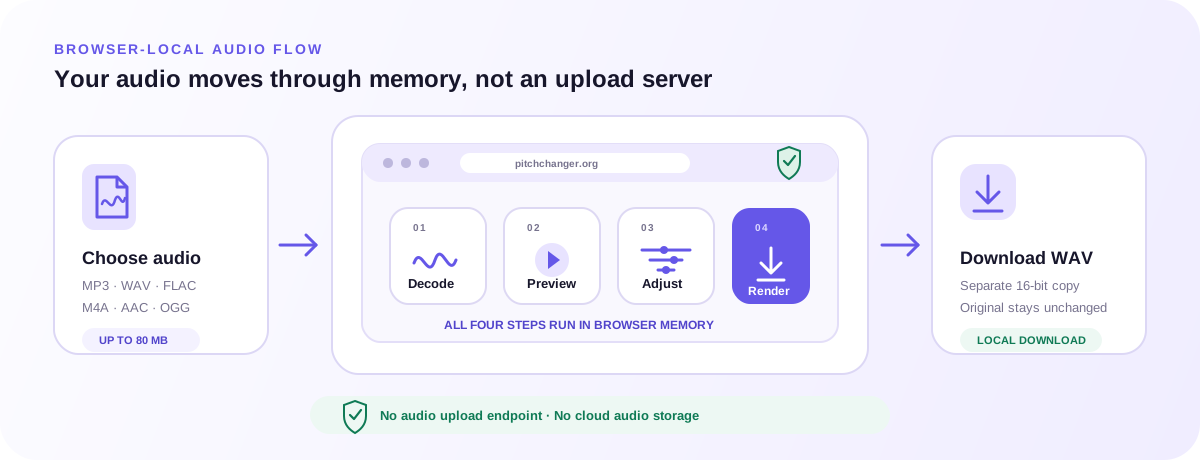
The MP3 to WAV converter uses the extension or MIME type as an initial filter, without strict container validation. The browser must be able to decode the content. Maximum size is 80 MB, with mono or stereo output. Use an original MP3 rather than renaming another format to pass the filter.
The MP3 to WAV converter fixes output at 16-bit PCM. Sample rate and channel count follow the browser decoder. Metadata, album art, and encoder delay from the MP3 are not copied. The WAV is usually much larger than the MP3.
Preview and download links are released after a successful replacement or when you leave. Analytics receive coarse actions, never the audio, filename, or estimated size.
Related browser tools
Pitch, timing, direction, tone, automatic analysis, and tap-based tempo are different audio tasks. Open the tool whose controls match the result you need. Any file you choose stays inside that tool’s browser-local workflow.
Apply one constant peak or RMS gain to the WAV when the remaining task is level, not format.
Open Audio Normalizer →Change playback speed from 50% to 200% with pitch lock after you have an uncompressed copy.
Open Audio Speed Changer →Transpose by semitones or cents and control tempo separately when conversion is already done.
Open Pitch Changer →FAQ
Answers about WAV size, sample rate, quality, and privacy.
Choose an MP3, check the decoded file details, and click Convert. Download the locally encoded 16-bit PCM WAV; no audio is uploaded.
No. Decoding to WAV cannot recover detail or metadata discarded during MP3 compression.
Not necessarily. The browser may resample during decoding. Output uses decoded channels and sample rate, without ID3 tags or cover art.
Uncompressed PCM stores every sample. Longer duration and more channels increase output size; check the estimate before converting.
No. Convert one MP3, download it, then choose the next. Renaming WAV or FLAC does not make it an MP3.
No. Output is 16-bit PCM at the decoded sample rate. Use an audio editor for other specifications.
Only after Convert. Selection decodes the MP3 for file details and preview.
A successful replacement clears the old preview and WAV link. If loading fails, your previous file and download remain available.
Yes. No sign-up or audio upload. Coarse analytics exclude filenames and audio bytes.
Use Audio Normalizer for level, Audio Speed Changer for timing with pitch lock, or Pitch Changer for transposition.
Check your file and estimated WAV size in the MP3 to WAV converter, then convert. Keep the original for its tags and smaller size.
Open the mp3 to wav converter